
Use a pallet ticket when you need an investigation and the issue is not a formal claim. Pallet tickets and pallet claims are separate lists.
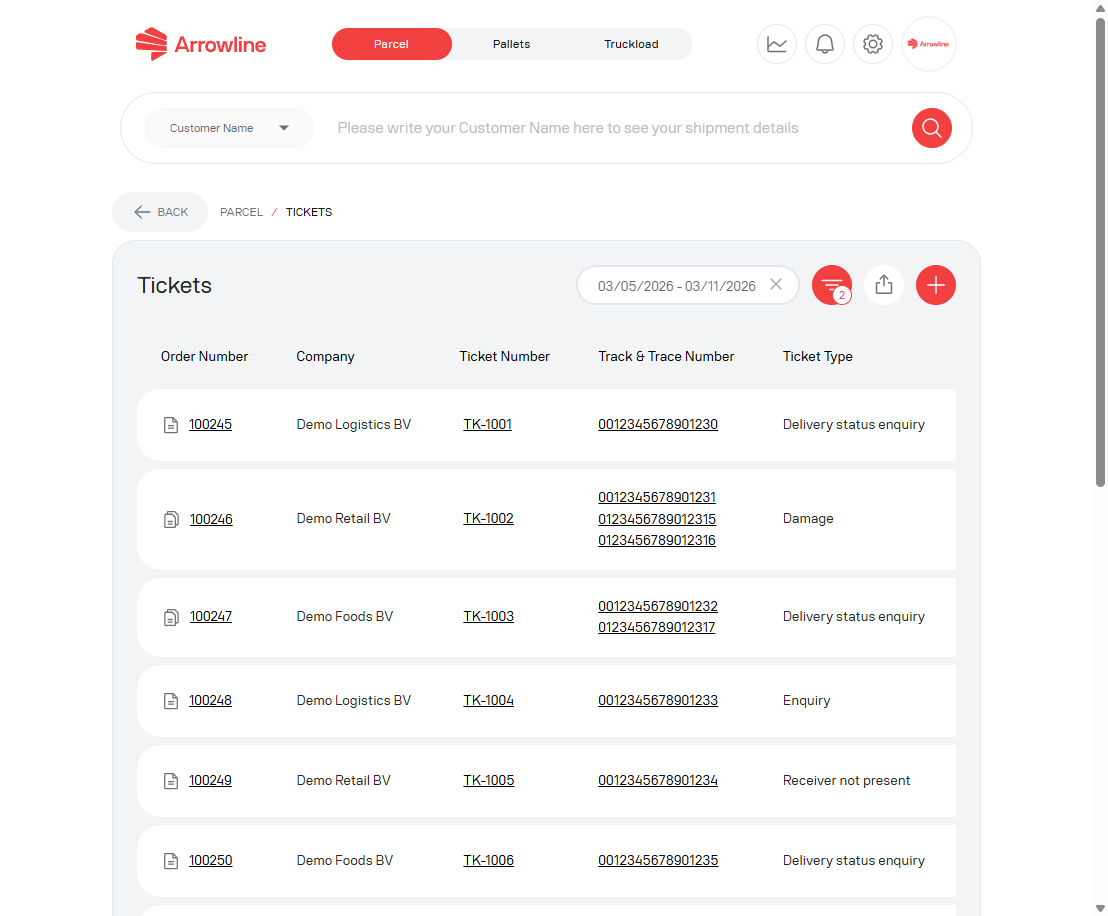
Review existing tickets
The list can show ticket number, subject, category, priority, status and last update.
You can filter, export the filtered list, open a conversation or create a ticket. Export follows the filters and the same company or country limits as the list.
Create a ticket
- Open Pallet ticketsFrom the Pallets workspace, open Tickets and start a new ticket.
- Look up the orderEnter the complete order number. The portal will not continue if the order is unknown.
- Select one or more barcodesChoose the barcodes that belong to the issue. You must select at least one.
- Choose the issue typeSelect a category and then a subcategory. Changing the category clears an incompatible subcategory.
- Describe the issueWrite what you expected, what the portal shows and when it happened.
- Attach files if neededAdd files that help Support investigate, then submit once.
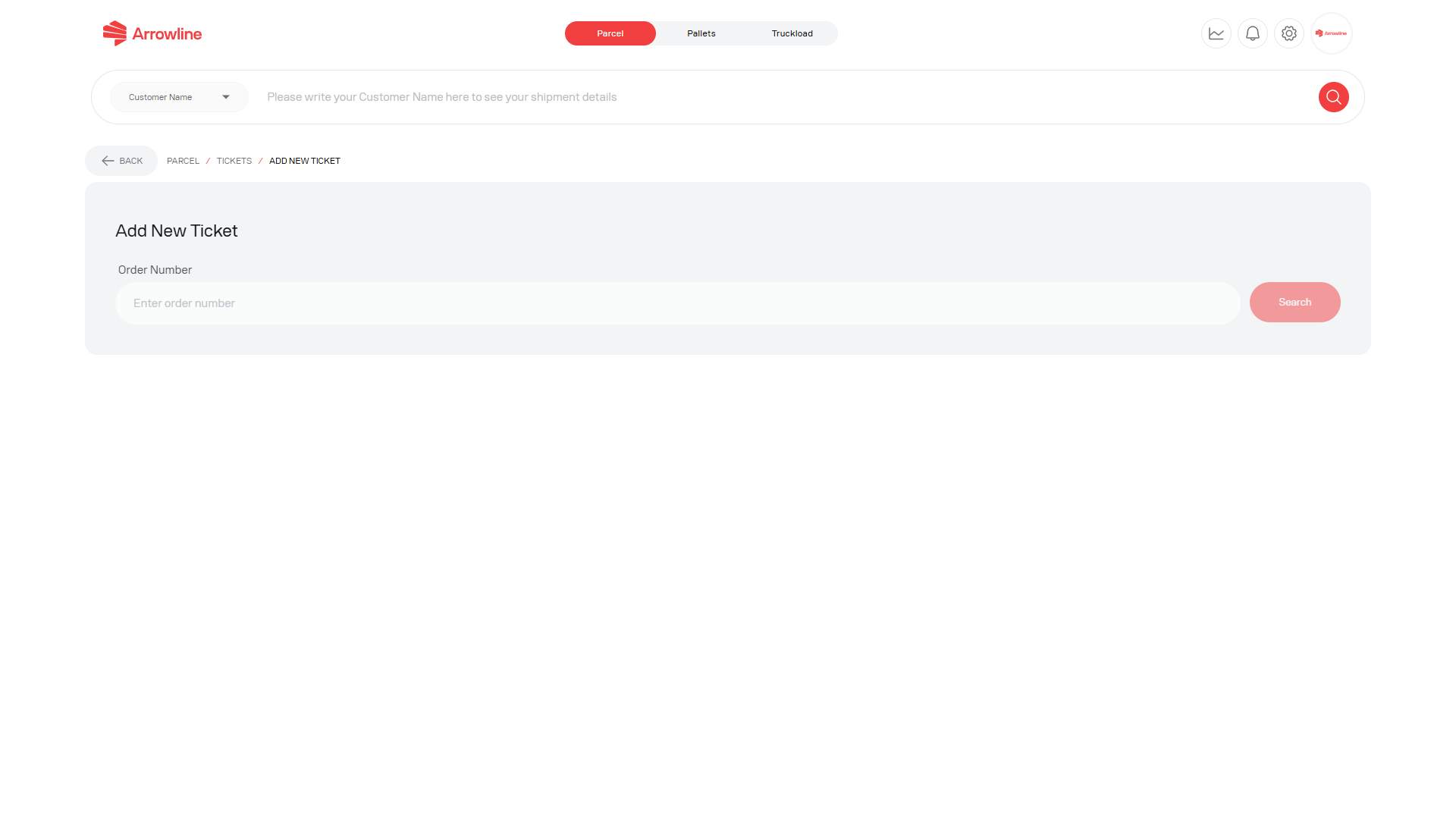
If every barcode on the order already has a ticket, the form is blocked. Open the existing ticket instead.
Some administrator accounts can choose a company context before they submit. Other users submit in their own company.
Follow the conversation
Open the ticket from the list. The conversation shows the history, comments, attachments and the linked pallet or order when it is available.
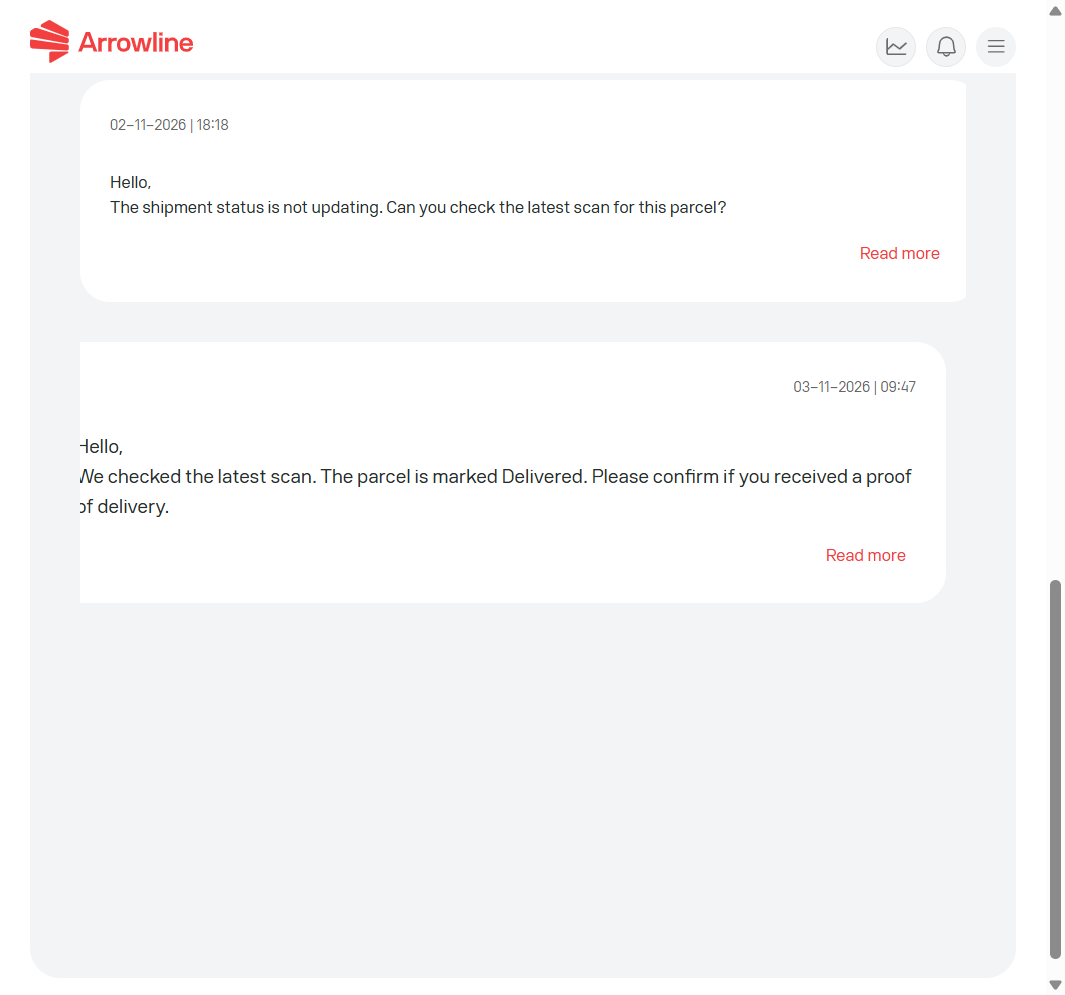
Reply in that conversation. Do not open a second ticket for the same barcodes.